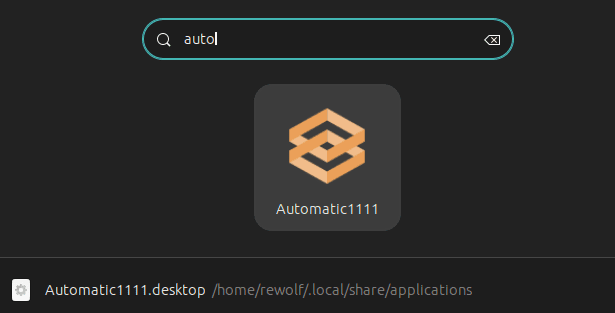
Recently I've been running a lot of local web-based tools for AI on my Ubuntu (23.04) Desktop, like ComfyUI or Automatic1111. Although it's only a few commands to get there in the terminal, launching it from the Ubuntu Dash would be much faster.
SO I recently set this up, and I highly recommend you do the same. Of course this works for any script, not just AI webapps.
All apps that show up in the dash do so simply because they have a .desktop file existing in the right location with the right content.
So we need to create a .desktop file (AKA a "launcher").
What goes in the file?
For fun, I asked my local AI (OpenHermes2.5) about the file contents and it told me this:
AI
A .desktop file typically follows a standardized format and contains key elements that define its behavior. Generally, a .desktop file consists of lines starting with [Desktop Entry], which includes fields such as Name, Comment, Exec, Icon, Type, Categories, etc. The contents inside each section are separated by spaces or tabs. For example:
[Desktop Entry]
Type=Application
Name=MyScript
Comment=Runs my custom script
Exec=/path/to/your/script/my_script.sh
Icon=/path/to/icon/file
Terminal=false
Categories=Utility;Application
After more prompting, apparently only Type, Name and Exec are required but, because the process
doesn't have a native UI window we can close when we're done, we should also set Terminal=true so we have something to close when we're done.
One last thing to note is that Automatic1111 and many other programs might expect you to execute it from the directory holding the script.
In A111's case, it's due to how it activates the pyenv, but for this reason we need to cd there first.
A launcher for Automatic1111 (or whatever you want) might look like the following. See how the Exec is not just directly calling the script but executing via bash -c so we can cd to right working directory.
[Desktop Entry]
Type=Application
Name=Automatic1111
Exec=bash -c "cd /home/rewolf/Apps/Automatic1111 && ./webui.sh"
Terminal=true
Where should the file be placed?
We'll skip the part of asking AI, and I'll just give the details.
App launchers can go into /usr/share/applications or $HOME/.local/share/applications.
If this app resides in your $HOME directory (ie. it's for your user alone to use), then the launcher should go in $HOME/.local, but if
it's going to be used by multiple users on the machine, then choose the /usr/share location.
In my case I created the launcher file at /home/rewolf/.local/share/applications/A1111.desktop.
Now when you press your Dash shortcut key (the "super" key, usually),
you should be able to search for your app by the name specified in the launcher file (Automatic1111 in my case).
Adding an Icon
There is a default Icon given to launchers, but you can easily specify your own with Icon=ICON_NAME where ICON_NAME
is the name part of a file in either $HOME/.local/share/icons or /usr/share/icons. The same logic applies here as to
which directory to place your icon.
Use the official icon, or create your own with AI!
Summary / tl;dr
And with that you should be able to run any script using a launcher.
To summarise, create a .desktop for your script (~/path/to/script.sh) in ~/.local/share/applications/YOUR_LAUNCHER.desktop, a corresponding icon file
in ~/.local/share/icons/YOUR_ICON.png and fill YOUR_LAUNCHER.desktop with
[Desktop Entry]
Type=Application
Name=YOUR_LAUNCHER_NAME
Exec=/path/to/script.sh
Terminal=true
Icon=YOUR_ICON
Hope this helps someone be more productive!