In the beginning, there was Netflix.
Then there was Hulu. Amazon Prime Video. Disney Plus. HBO Max. Paramount Plus. Apple TV Plus. And the list goes on.
And of course if you don't live in the US it's very possible you can't subscribe to all of these even if you want to. For instance HBO Max has a lot of great exclusive content but is only available in the US. Attempts to bypass georestrictions with VPNs are very hit and miss to say the least. I tried using an HBO Max subscription via a few different VPNs and it kept throwing out errors that basically amounted to: "we know you're not actually in the US, no VPNs allowed."
In other words, they don't want my money.
I've also been in situations where a streaming service has a show I want to watch and I'm happy to pay, but the episodes come out a week late compared to the US. For instance this happened recently with Dopesick (excellent show, btw). It aired on Hulu but that's only in the US. It is on Disney Plus worldwide. But despite Hulu being owned by Disney, the episodes appeared on Disney Plus a week after Hulu. Why they would do this I don't know, but I do know I'm far from the only person who turned to alternate methods of watching new episodes because of it.
On top of that, most streaming services offer different libraries in different countries. Netflix US has a different - and often superior - library to Netflix UK or Netflix Spain and so on, despite there being no difference in price.
If you're reading this I'm sure you're technically apt enough to torrent, but searching torrent sites until you find a good upload with enough seeders, waiting for it to download, then putting it on whatever box you play your media from (Plex etc) is a lot less convenient than streaming, to say the least.
If only you could access the full library of all the top filesharing sites from your phone, tablet, computer, smart TV, or Android TV stick/box, find what you wanna watch, and just hit play and have it work instantly. And if only such a thing could detect the resolution of your TV and see if it has support for 4K HDR, Dolby Atmos, and so on. And if only it synced up between your phone and TV and other devices so you could continue where you left off and have a favourites list.
If only you could type "Stremio" into Google and install it.
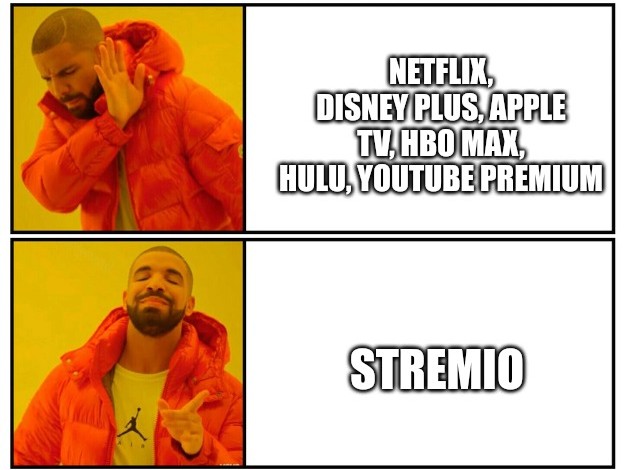
Yes, that is not a hypothetical. You can get this on your computer, smartphone, and any Android smart TV, stick, or box.
The main exception here is iOS. You can get it on your iPhone and Apple TV, but it is a "restricted version" that doesn't allow the use of addons, and addons are what you need to get the full potential of this thing.
But you can just grab it right off the Play Store on Android devices, and sideload it onto ones that lack the Play Store, including Amazon Firesticks.
All the addons are server-side and are added to your account. This means that, unlike Kodi, there is no risk of accidentally installing malware when adding functionality. An addon is simply adding a source to your account. The software on your device is the same.
So, the first thing to do is install it on your phone, tablet, computer, anything that isn't a TV. Once you do, make an account (I obviously recommend using a throwaway email or a redirect). Then go to addons, scroll through, and choose what you want.
You can get not only sources but also catalogues that categorise the content for you. For example you can view the new releases on Netflix, HBO Max, Disney Plus, etc or you can go by top rated on IMDB, whatever you want.
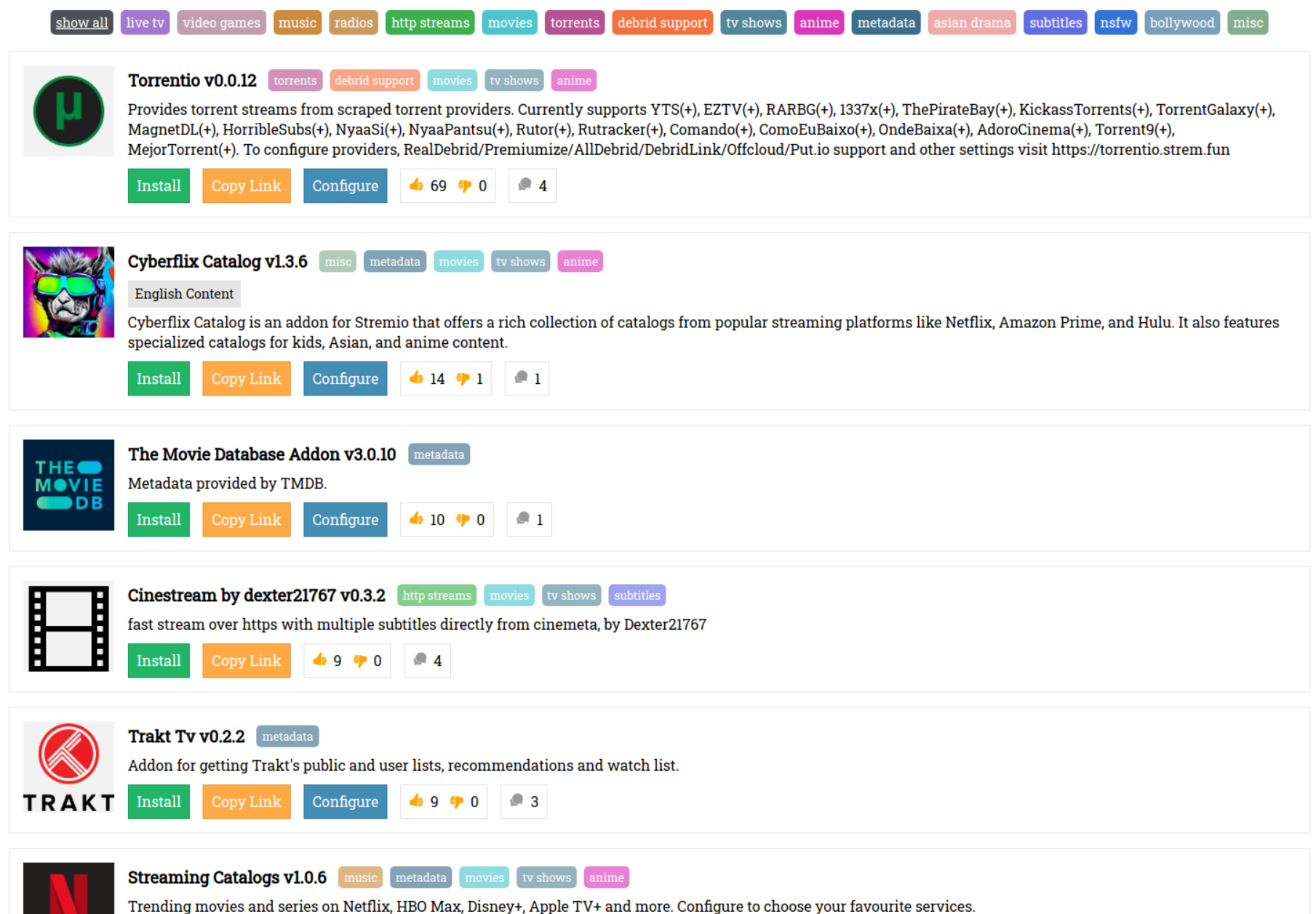
It's a good idea to get multiple addons for both sources and catalogues so if one doesn't work the others will. It also ensures you have access to even obscure content.
You can install addons from the PC and mobile apps but not the TV app. This is no problem however. Once you got your addons sorted, open the app on your TV and scan the QR code on your phone. Login to your account and it'll create a new session for you. You're now signed in on your TV and it should automatically load up your extensions. If not, or if you install new ones later on that don't show up, just hit the extensions option on the menu in the TV app and press "sync." Done.
Once you've found what you wanna watch the flow is simple. In my case I want to watch Silicon Valley. So I open it and it starts from where I left off:
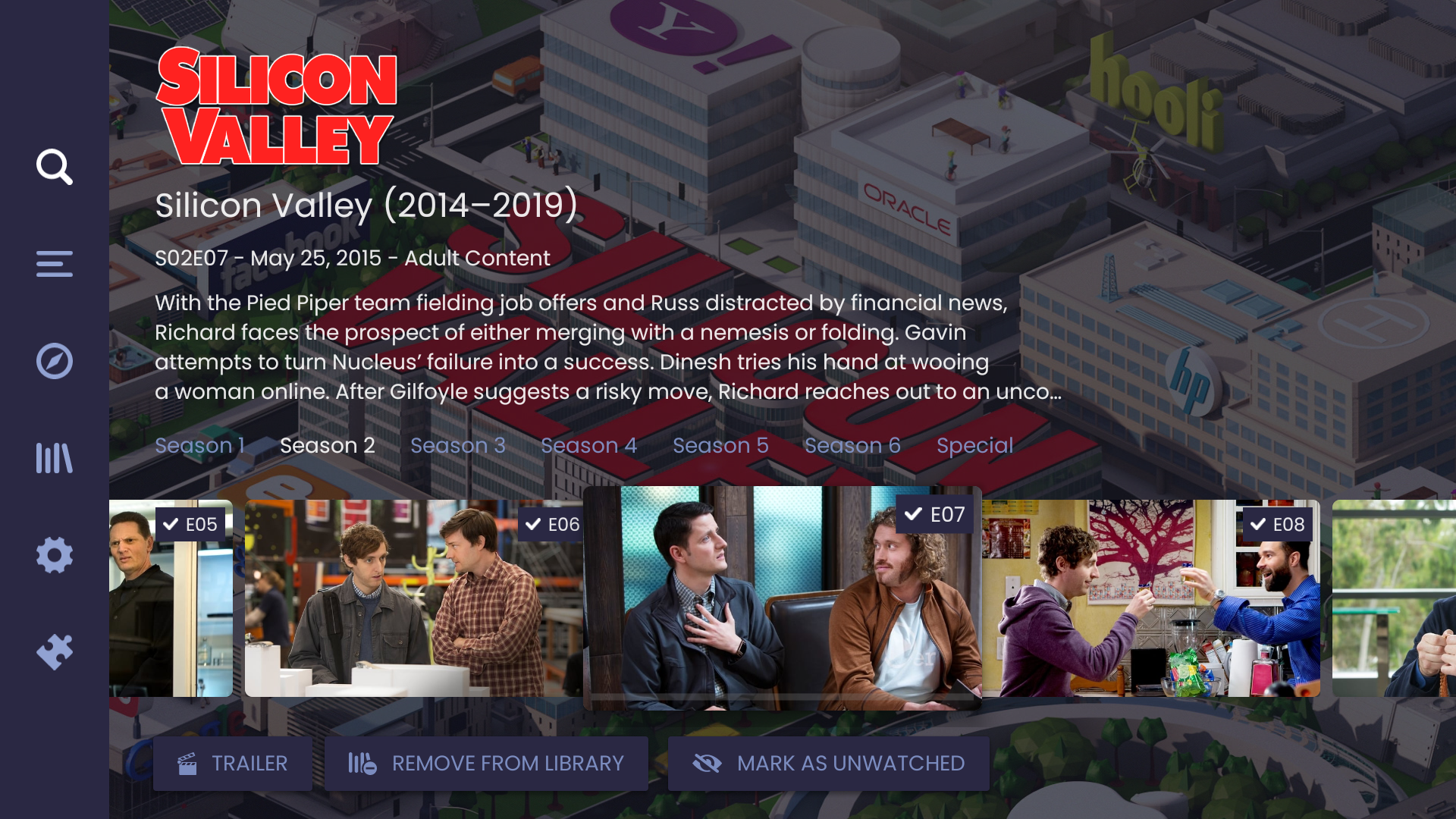
Once I hit an episode I can choose a source. Although the screen below shows sources from a simplified addon, others let you choose the exact encode you want. You can choose from x265, 4K HDR, Dolby Atmos, etc.
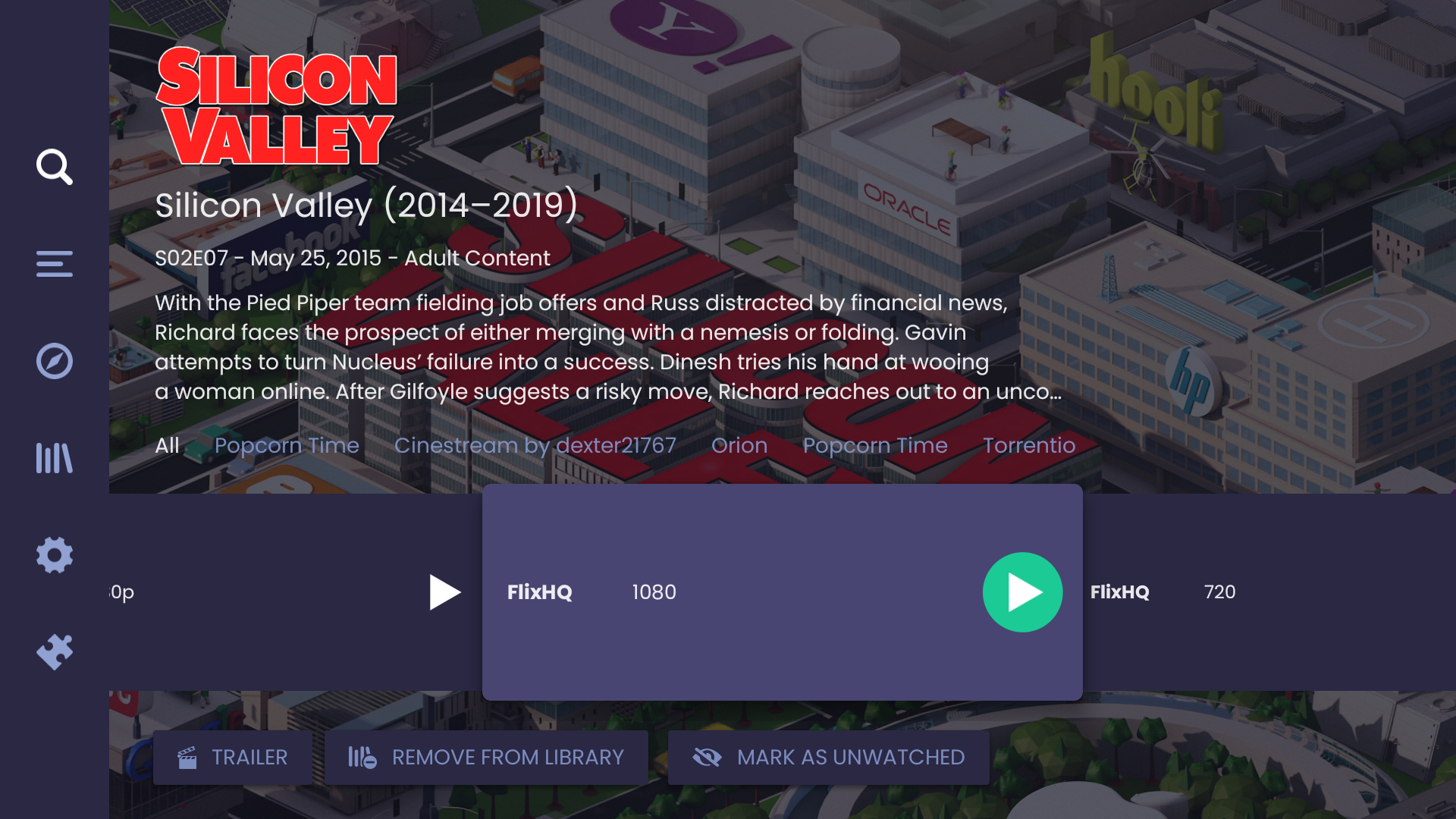
Once you select the source, it will autoplay the next episode from the same one, or if there's some problem with it, it'll choose another once it times out. Usually, though, everything is smooth and flawless as long as your internet is fast enough to stream from anything else. It goes without saying that if you use a torrent based addon (not all of them are torrent based) the speed will also be limited by number of seeders. The app helpfully organises the torrent sources by seeder count.
And... that's it. Not really much else to say here. You now have access to a library of basically every movie and TV show, categorised however you want, for free.
If you are streaming from torrents (often you must do this to choose if you want specific encoding and audio options etc), this does mean that your ISP can see what you're doing. If you are concerned about this, you can use a VPN. You can use the Play Store or F-Droid to install popular VPNs like IVPN, Mullvad, and ProtonVPN even on Android TV.
If your VPN of choice doesn't have an Android TV app, you can sideload the normal Android app - it of course is likely not to be optimised for non-touchscreen devices but that just makes navigation a little tricky with a remote control, it still will work, and some streaming devices have a touchpad remote, others you can use third party apps to enable use of wireless touchpads or to use your phone as one. Or you can just run the VPN from the router if you're set up for that.
I trust, of course, that you will only do this in countries where consuming pirated content isn't illegal, otherwise this is only for informational and educational purposes.
Stream responsibly!